Login and language
Logging in
Log in with the user name (or email address) and password you received from your club admin or the platform operator. Club accounts are not created by sign-up; only My training has its own sign-up. Forgot your password? If your account has a confirmed email address, use Forgot your password? on the login page; otherwise ask the operator to set a new password in the admin panel.
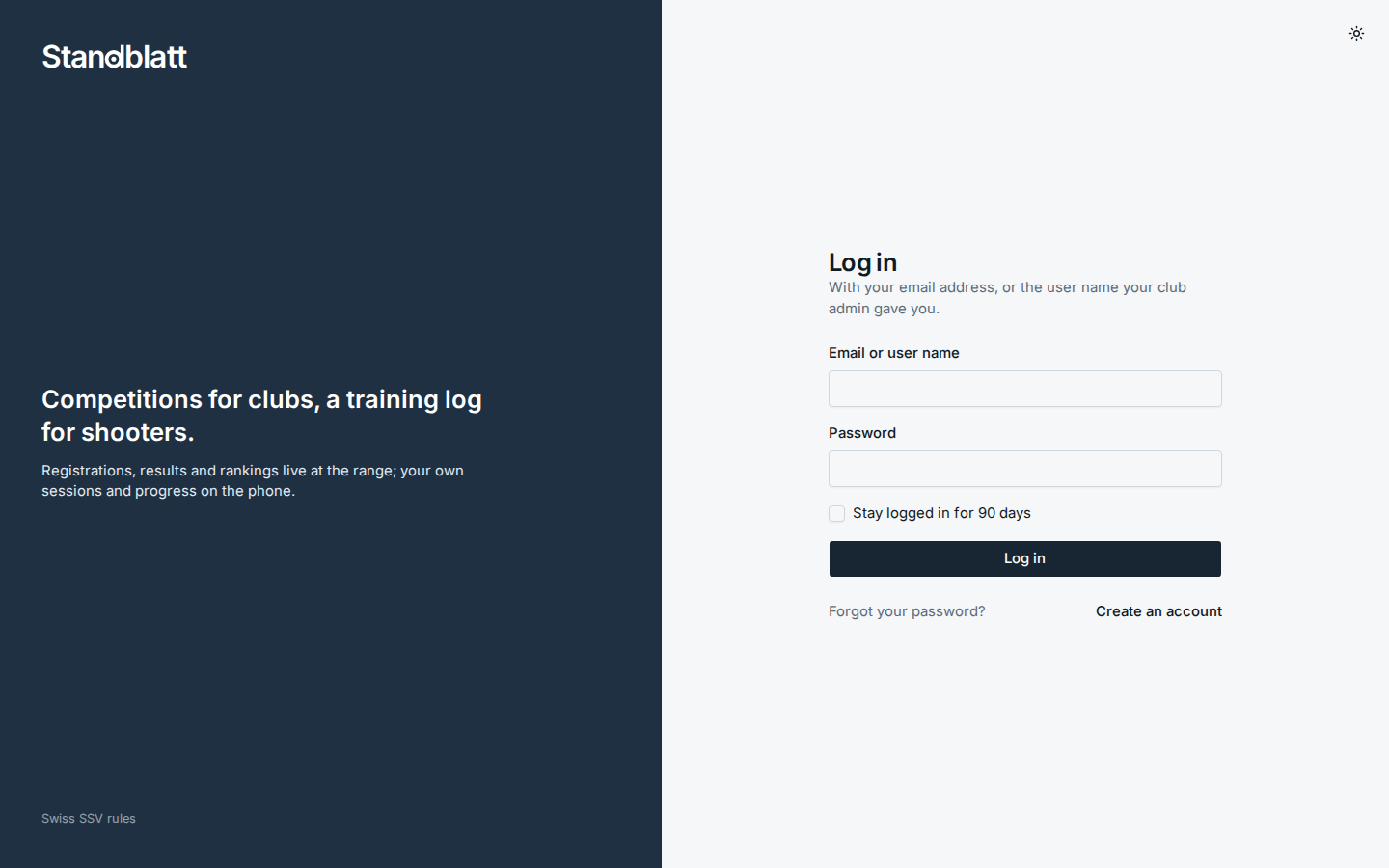
A login stays valid for seven days of inactivity and at most 30 days; with Stay logged in for 90 days ticked, it lasts 90 days on that device. After too many failed attempts, logins from the same address are blocked for a while.
If your account belongs to several clubs, you choose the club after logging in; Switch club in the user menu goes back to that choice.
Second factor
An authenticator app (Google Authenticator, Aegis, 1Password and the like) can protect your login: after the password, Standblatt asks for the six-digit code the app shows. Set it up under Account in the user menu (bottom of the sidebar) or in My training under Settings → Second factor: Set up, scan the QR code, enter the current code, Switch on. Switch off asks for your password. Lost the phone? The operator can reset the second factor in the admin panel. The operator can also switch the feature off for the whole server.
Language
The interface is available in English, German, French and Italian. Without a choice, Standblatt follows the browser's language. Language in the user menu (bottom of the sidebar) sets it for your account on every device.
Printed documents, CSV exports and kiosk screens do not follow your choice but the language of the event, so that every printout of an event looks the same (see Events).
Version
The bottom of the sidebar shows the version of the server, which helps when reporting a problem; in My training on a phone it is under Settings. When a new version is released, open pages offer Reload within a minute and load it on the next page change at the latest.